
MY and US Client
1. Access the Exabytes Billing System by logging in at:
https://billing.exabytes.my/mypanel/clientarea.php (MY Client)
https://billing.exabytes.com/mypanel/clientarea.php (US Client)
https://billing.exabytes.sg/mypanel/clientarea.php (SG Client)
2. Once logged in successfully, navigate to "Domains" > "My Domains"

3. You can then select "Manage Nameservers" for the domain for which you wish to modify the name servers.

4. Next, select "Use custom nameservers (enter below)"
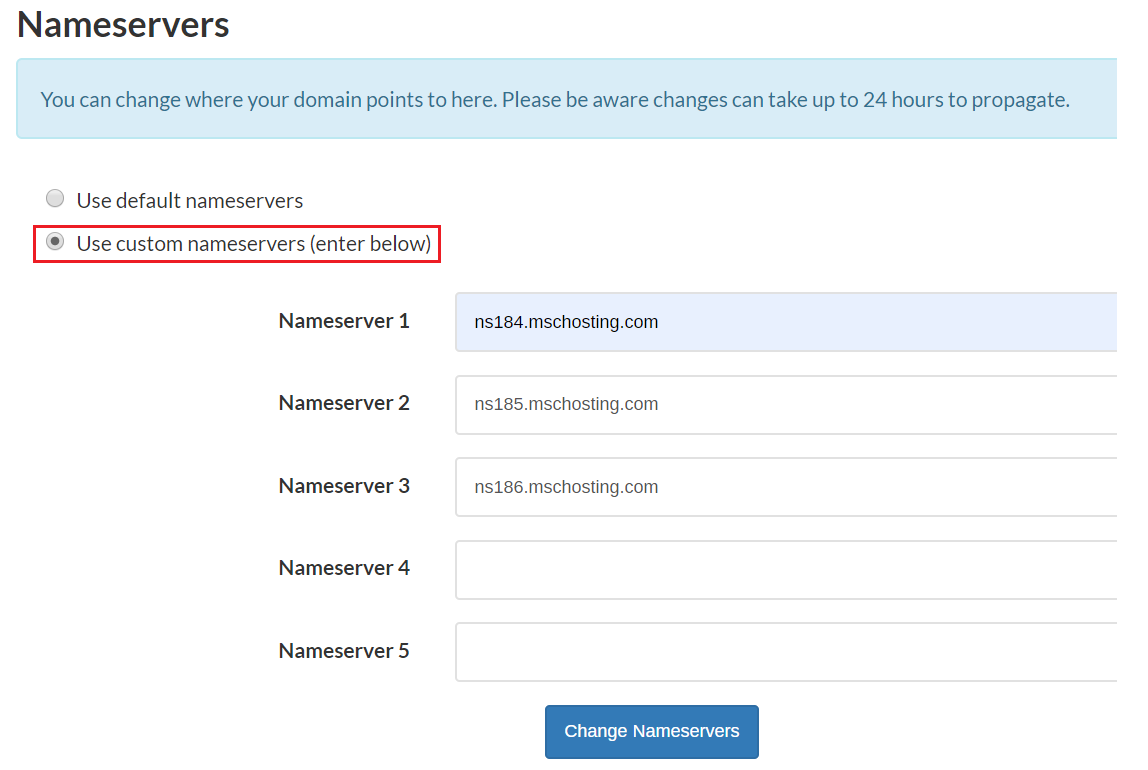
5. After this, enter the name servers as shown below, referring to our default nameserver: :
Nameserver 1: ns184.mschosting.com
Nameserver 2: ns185.mschosting.com
Nameserver 3: ns186.mschosting.com
* Should you receive the error "Name server not registered," please reach out to domain@exabytes.my (MY Client) or domain@exabytes.com (US client) for assistance.
* The propagation of the domain name server can take between 24 and 72 hours.
SG Client
1. Access the Exabytes Billing System by logging in at https://billing.exabytes.sg/mypanel/clientarea.php
2. After successfully logging in, click on "Domains" > "My Domains"

3. You may then select "Manage Nameservers" for the domain you wish to change name servers for.

4. Then click on "Use custom nameservers (enter below)"

5. Next, enter the name servers as shown below, example, referring to our default nameserver: :
Nameserver 1: ns187.sgcloudhosting.com
Nameserver 2: ns188.sgcloudhosting.com
Nameserver 3: ns189.sgcloudhosting.com
* If you encounter the error "Name server not registered," please contact domain@exabytes.sg for further assistance.
* The propagation of the domain name server might take between 24 and 72 hours.
NOTE:
Shall you encounter any error while updating the domain nameserver , kindly send the screenshot of the error encountered together with the details for our team to assist you further.
MY region: domain@exabytes.my
US region: domain@exabytes.com
SG region: domain@exabytes.sg