
Microsoft is deprecating the Exchange Web Services (EWS) API. Acronis is switching to the Microsoft Graph API for Exchange Online to continue backing up and recovering Microsoft 365 mailboxes. An administrator of your organization must approve the new permissions, otherwise mailbox backups will fail.
You will see this warning in the console:
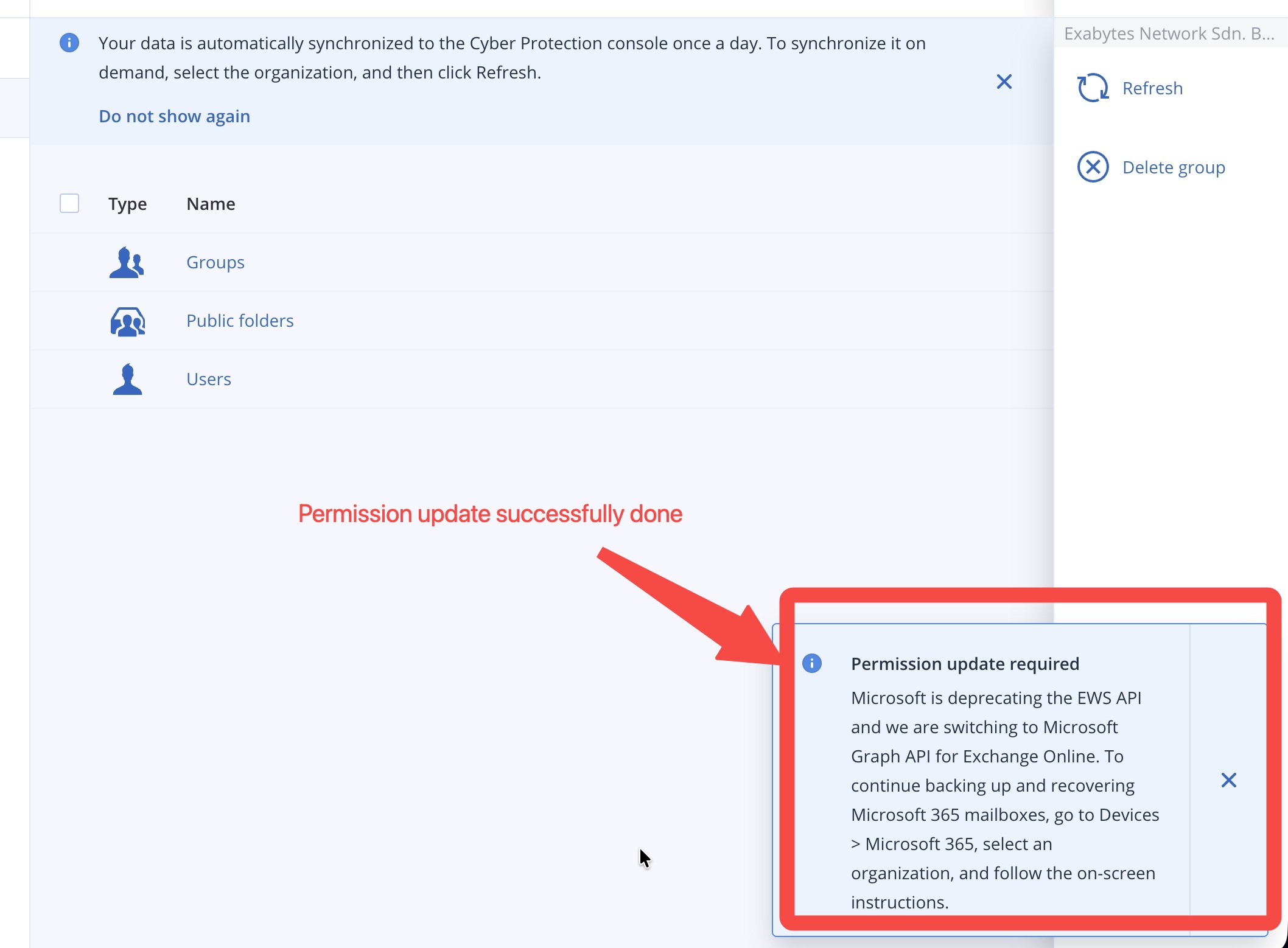
⚠️ Permission update required — "Microsoft is deprecating the EWS API and we are switching to Microsoft Graph API for Exchange Online. To continue backing up and recovering Microsoft 365 mailboxes, go to Devices > Microsoft 365, select an organization, and follow the on-screen instructions."
Before you start
Your Exabytes Cyber Protect (Acronis) login for https://cyberprotect.exabytes.my
A Microsoft 365 Global Administrator account for your organization — only a Global Administrator can approve these permissions
Takes about 5 minutes. Updated permissions may take a few minutes to sync afterwards.
✅ Step-by-step
Step 1 — Log in and open Microsoft 365 devices
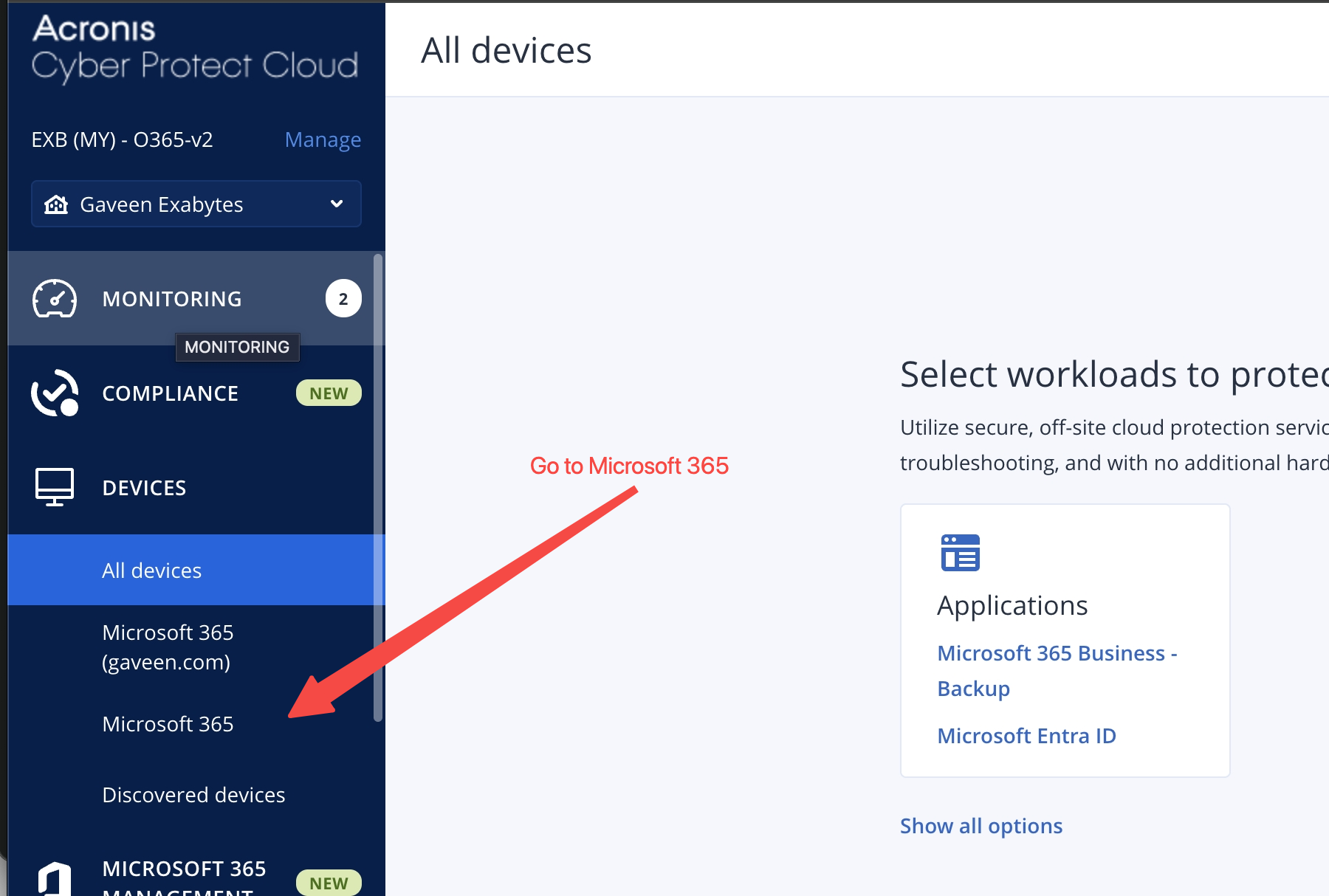
Log in to https://cyberprotect.exabytes.my, then in the left menu go to Devices > Microsoft 365.
Step 2 — Click "Review and approve permissions"
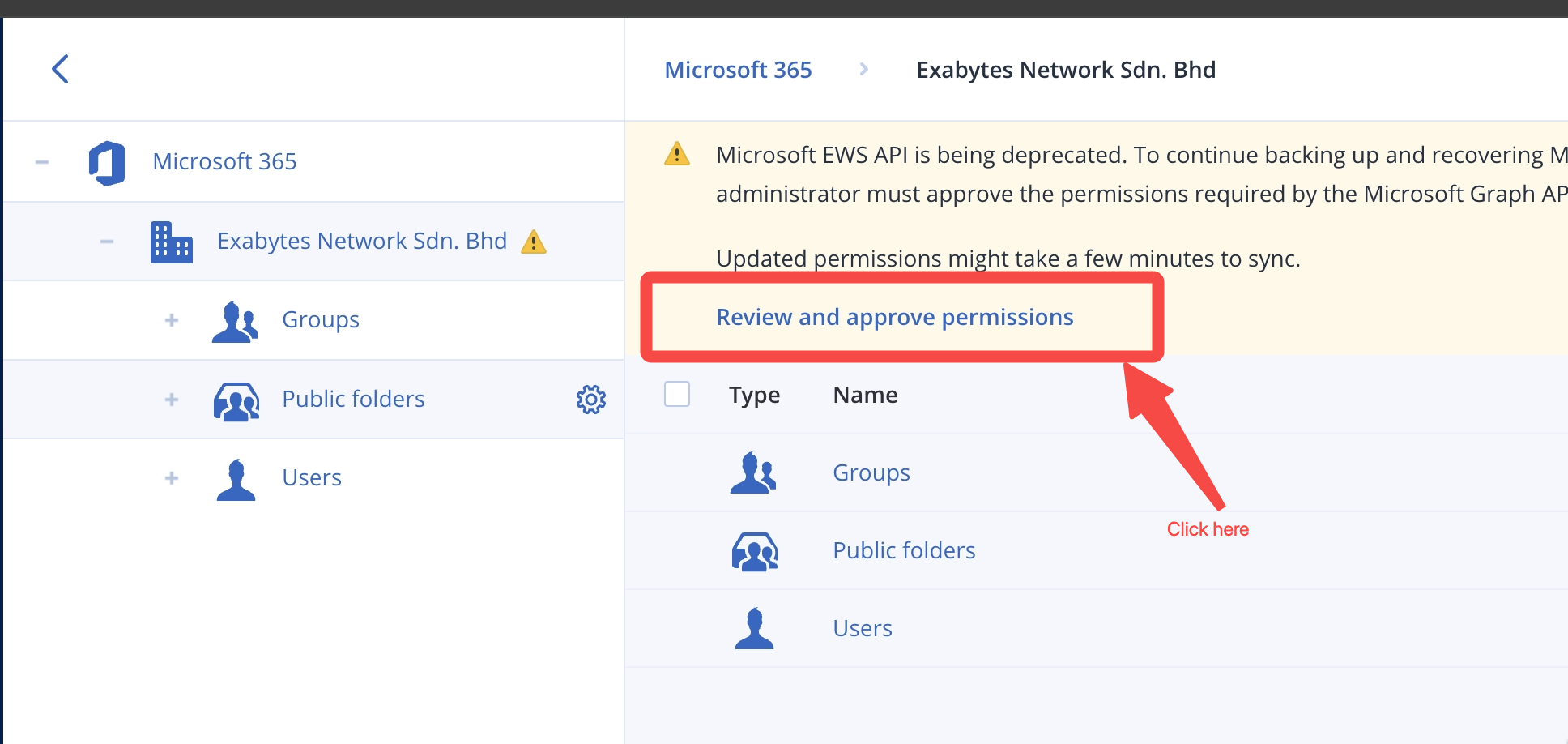
Select your organization. A yellow banner appears at the top:
⚠️ Microsoft EWS API is being deprecated. To continue backing up and recovering Microsoft 365 mailboxes, an administrator must approve the permissions required by the Microsoft Graph API...
Click Review and approve permissions.
Step 3 — Sign in to Microsoft
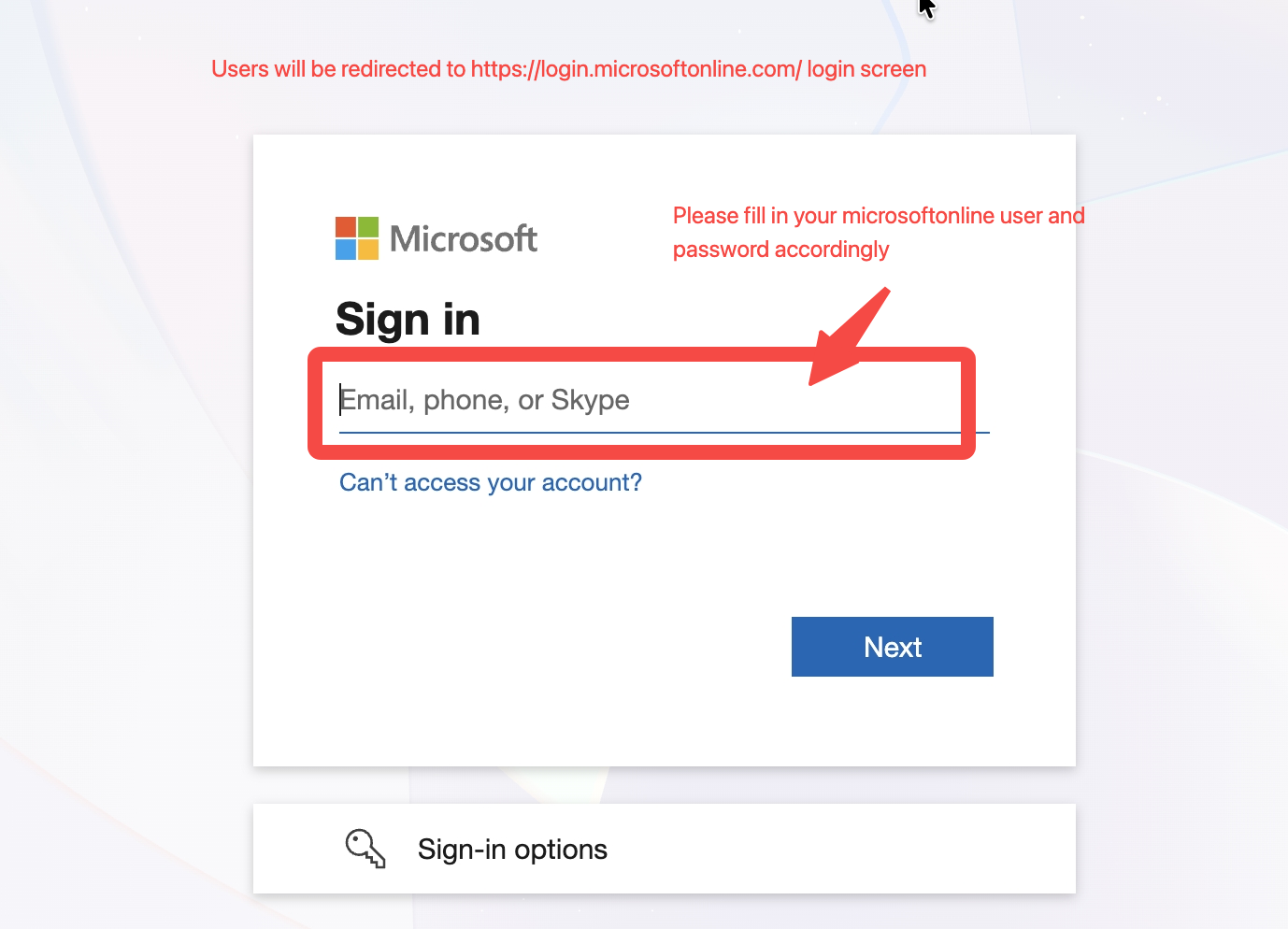
You will be redirected to https://login.microsoftonline.com. Enter the username and password of your Microsoft 365 Global Administrator account.
Step 4 — (If prompted) Skip the Authenticator setup
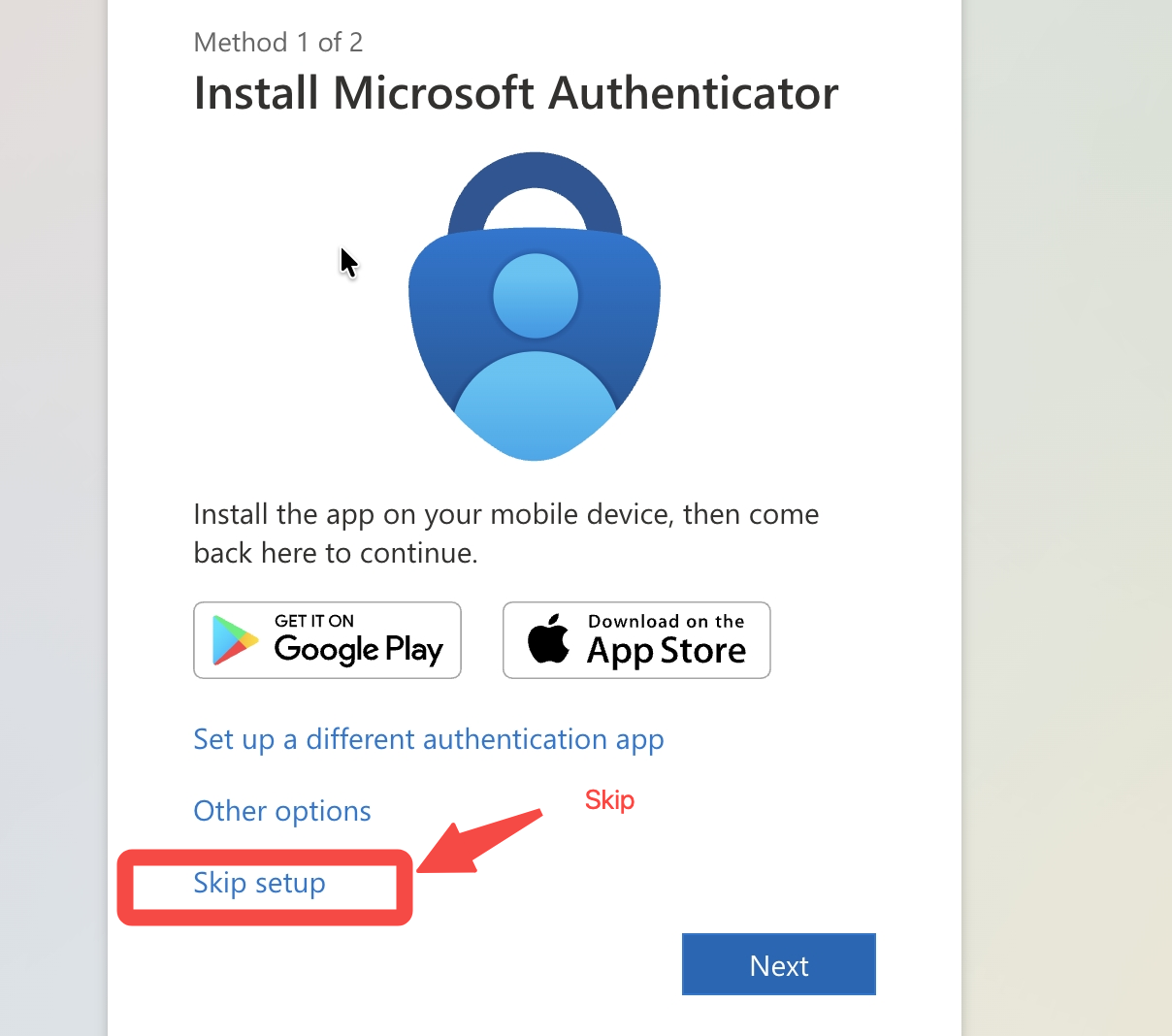
If Microsoft prompts you to Install Microsoft Authenticator, you may click Skip setup to continue, or complete the MFA setup first if your organization requires it.
Step 5 — Review and accept the permissions
A "Permissions requested" page for the Backup Service app will list the permissions required (mailbox backup/restore, read directory data, etc.). Scroll to the bottom and click Accept.
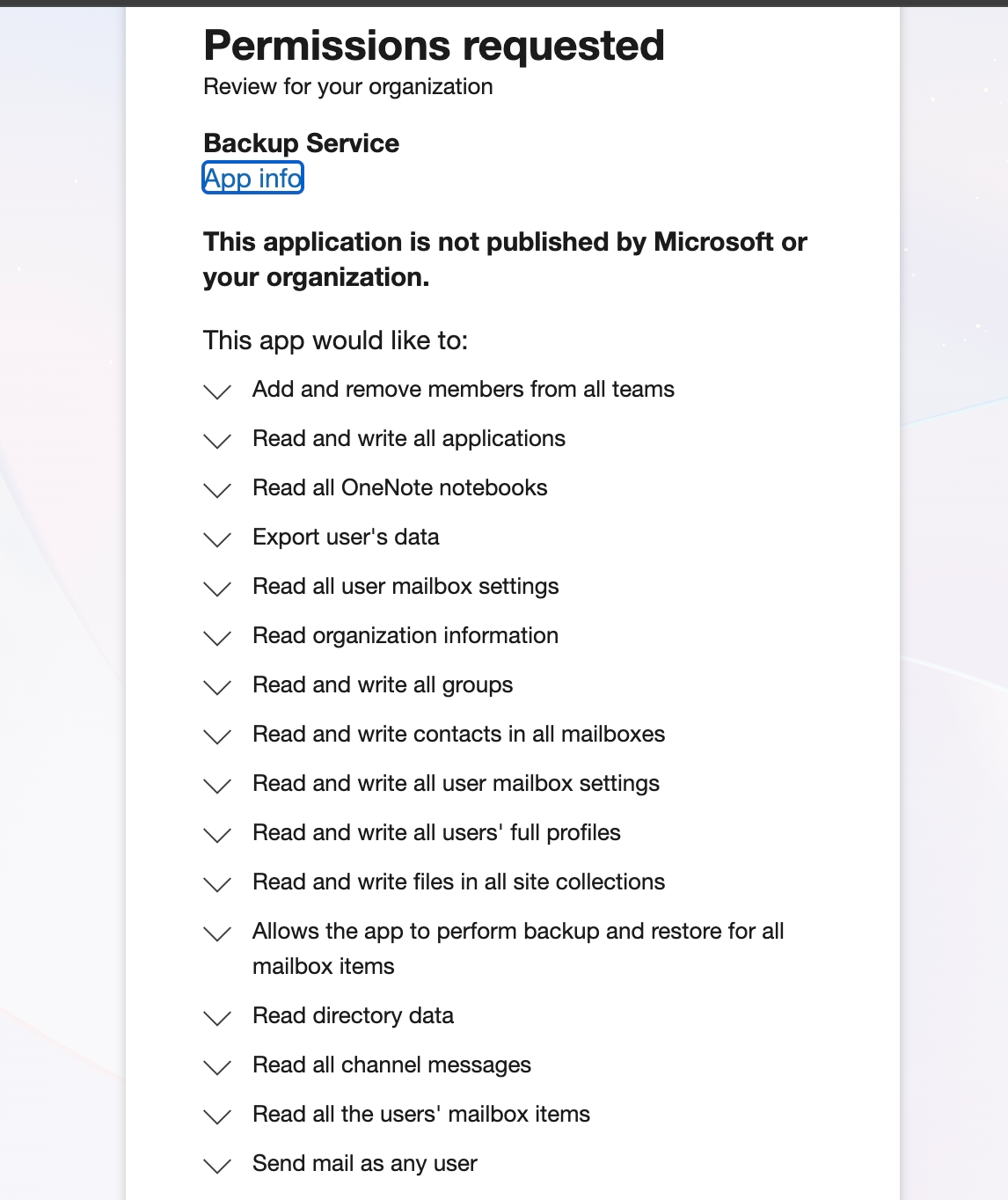
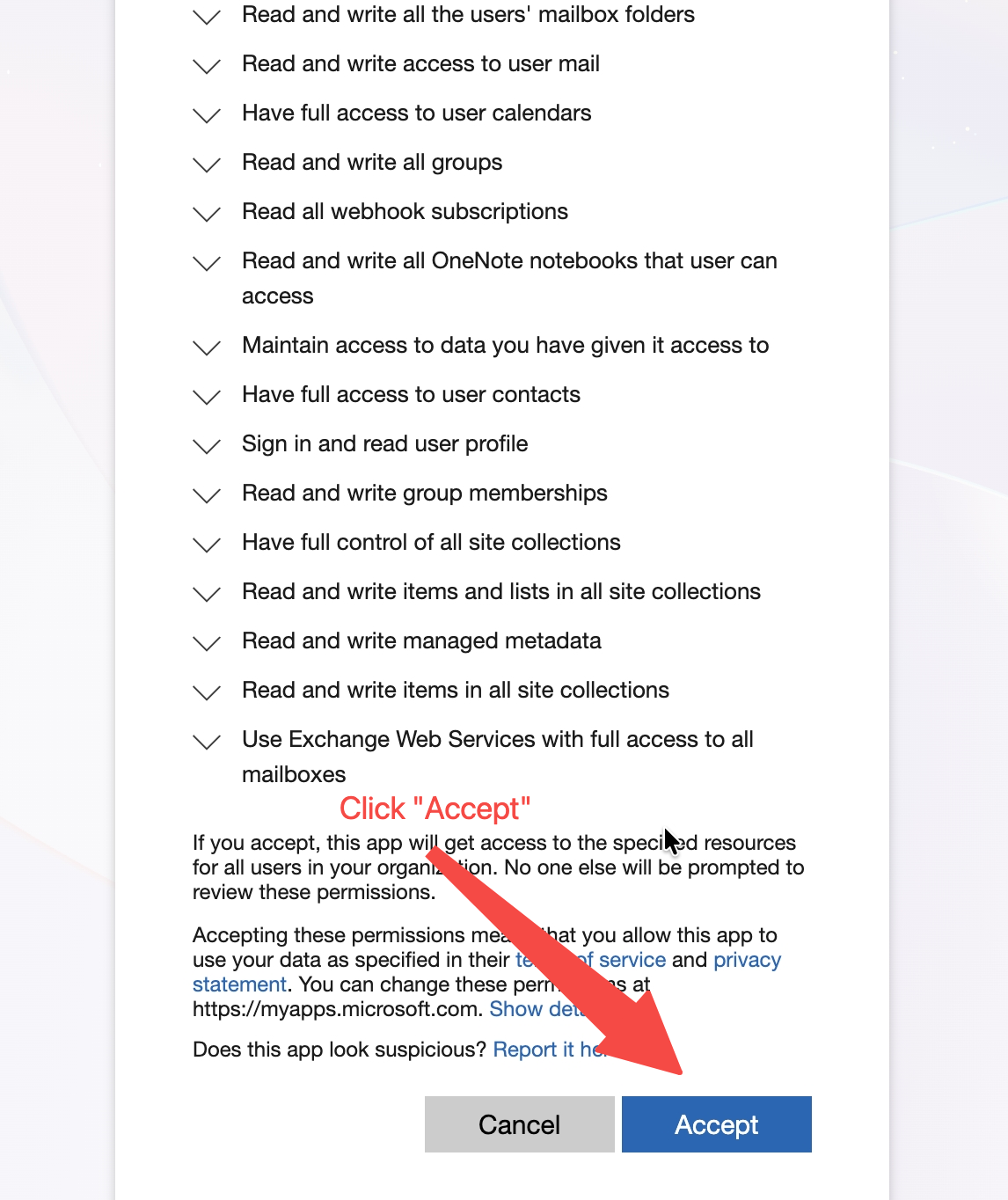
Note: "This application is not published by Microsoft or your organization" is expected — the Backup Service app is published by Acronis.
Step 6 — Done — verify in the console
You will be returned to the Acronis console. The permission update is complete. Data syncs to the console once a day — to sync immediately, select the organization and click Refresh.
Troubleshooting
Error AADSTS50020 ("User account ... does not exist in tenant")
The browser used a cached Microsoft session from a different organization. Fix:
Open a private/incognito window, log in to https://cyberprotect.exabytes.my, and repeat the steps, or
Sign out of all Microsoft accounts at https://login.microsoftonline.com/logout.srf, then retry with the correct Global Administrator account
Cannot log in to Acronis / no banner visible
Contact our Backup Support team — see below.
Need help?
Email backup-support@exabytes.com with your company name and registered Acronis account email — we will guide you through or arrange a remote session.
Reference
How to Approve Microsoft Graph API Permissions for Your Microsoft 365 Backup